Integrated GPU vs Dedicated GPU in Browser Benchmarks
How to tell whether the browser is using integrated or dedicated graphics, with Light and Heavy mode reference rows.
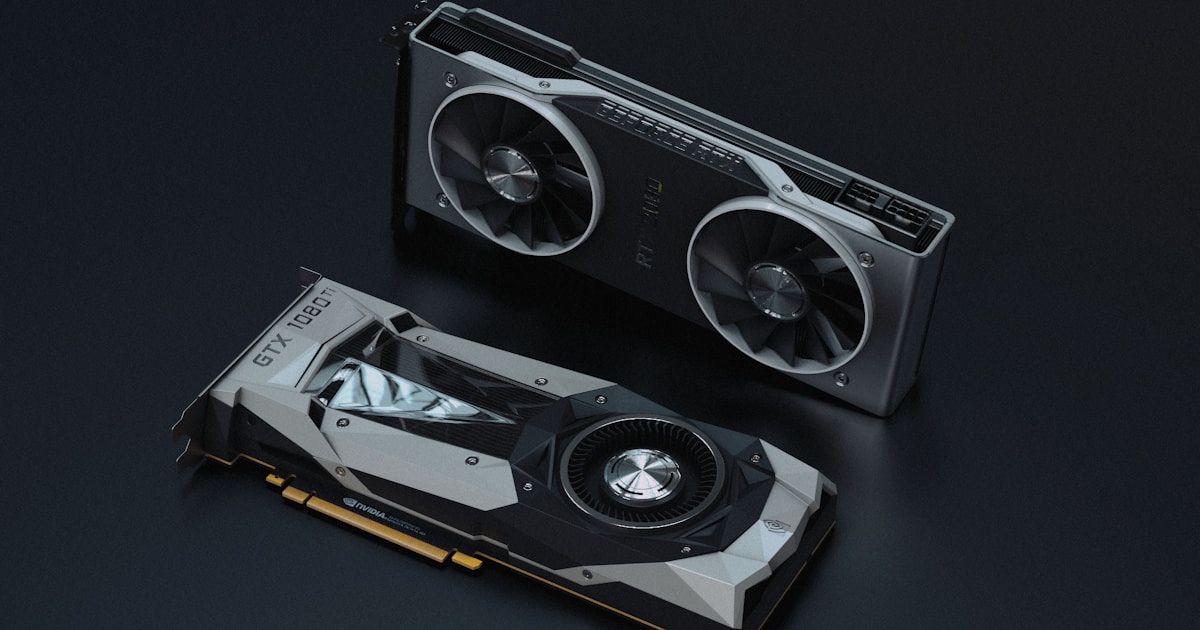
Browser GPU benchmarks are good at exposing whether the browser is using the expected graphics device. A laptop with a dedicated GPU may still run Chrome or Edge on integrated graphics unless the operating system graphics preference is changed.
Reference rows
| Device class | GPU | Browser | Mode | Avg FPS | Score | Notes |
|---|---|---|---|---|---|---|
| Integrated laptop | Intel UHD Graphics 620 | Edge | Light | 42 | 4,200 | Good for compatibility, not Heavy-mode stress |
| Desktop dedicated GPU | NVIDIA GeForce RTX 3060 | Chrome | Heavy | 74 | 37,074 | Dedicated GPU baseline |
| Desktop dedicated GPU | NVIDIA GeForce RTX 4070 | Chrome | Heavy | 112 | 56,112 | High-end shader throughput row |
Do not compare the Intel Light row directly with the RTX Heavy rows. The useful takeaway is that integrated GPUs should start in Light mode, while dedicated GPUs can be evaluated in Heavy mode if the browser stays responsive.
Signs your browser is using the wrong GPU
- A gaming laptop scores like an office ultrabook.
- Chrome's GPU diagnostics show software rendering or disabled WebGL.
- The laptop is unplugged and Windows selects power saving graphics.
- The browser score changes sharply after forcing high performance graphics in OS settings.
Checklist for Windows laptops
Open Windows graphics settings, add your browser, and set it to high performance. Restart the browser. In Chrome or Edge, open chrome://gpu and verify WebGL is hardware accelerated. Then run Light and Medium before trying Heavy.