Dead Pixel Check: How to Test Your Screen for Dead or Stuck Pixels
Check your screen with solid colors, identify persistent dark or bright dots, and record pixel issues separately from browser GPU performance.
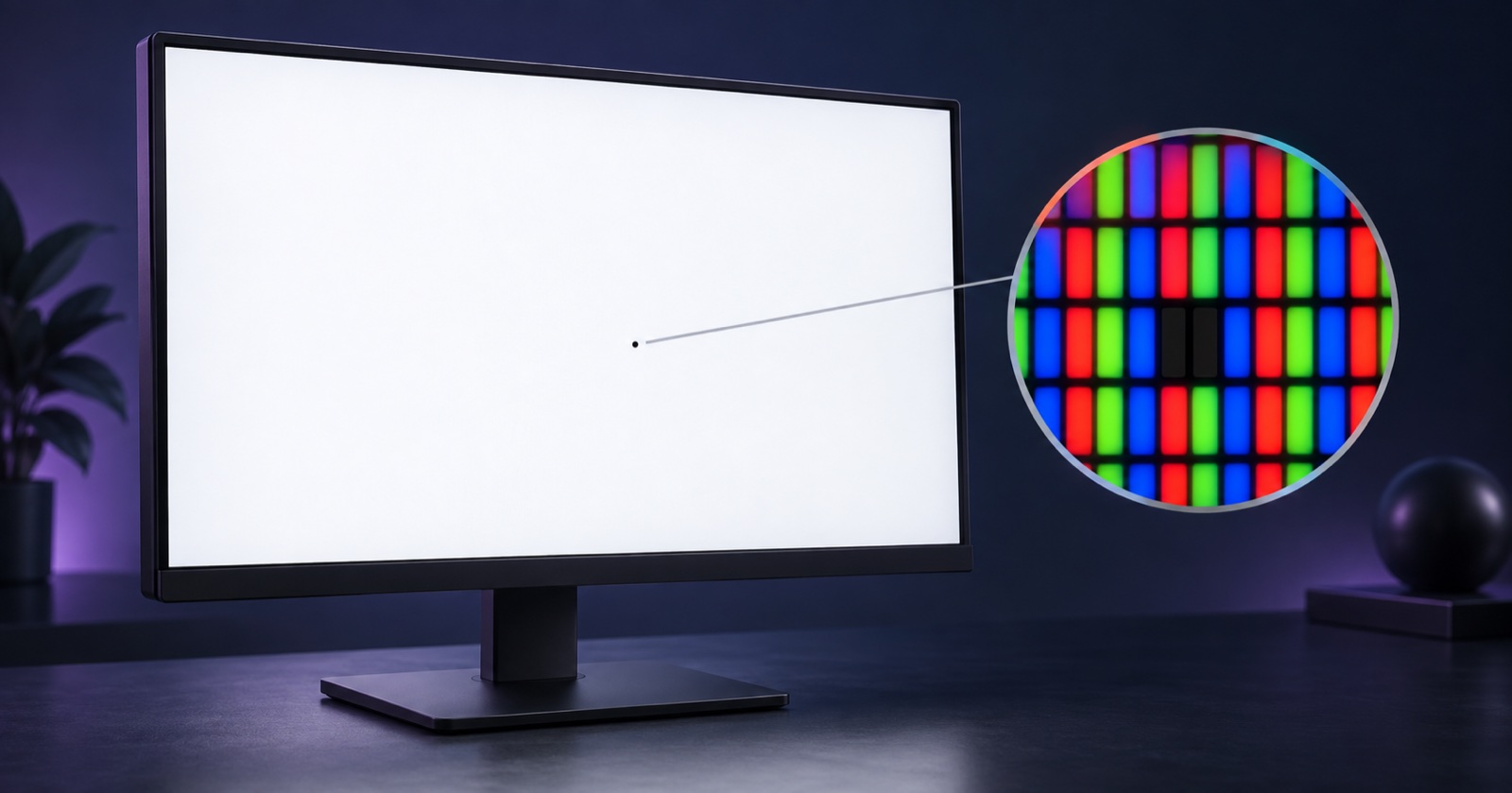
A dead pixel check uses plain backgrounds to help you spot pixels that stay dark, bright or colored when the image changes. It is useful when inspecting a new monitor, a used laptop or a phone with a persistent dot on its screen. You inspect the display yourself; the webpage does not automatically detect physical pixel defects.
Before you start
- Remove obvious dust and fingerprints with a soft cloth, following your device's cleaning instructions.
- Use the display's native resolution and a comfortable, normal brightness.
- If you have several monitors, move the test window onto the screen you want to inspect before entering fullscreen.
- Reduce reflections and leave enough time to examine the whole screen on each color.
Run a dead pixel check
Open the dead pixel check and inspect your screen using solid-color patterns. Look for dark or colored dots that remain in the same position as you change colors.
- Start the screen test and enter fullscreen so browser controls do not cover part of the display.
- Examine a white background for fixed dark dots, then a black background for bright or colored dots.
- Inspect red, green and blue backgrounds. A subpixel issue may stand out on some colors more than others.
- Pause the automatic sequence or change patterns manually while inspecting the edges, corners and center. On a phone, keep the device still while checking a suspected spot.
The tool also lets you mark an issue's location. Record which background makes the spot visible so you can repeat the same check later.
How to interpret what you see
| Observation | What to check next |
|---|---|
| A fixed black dot on light backgrounds | Check for a dark pixel or subpixel defect on several colors. |
| A fixed white or colored dot on black | Check for a bright pixel or stuck subpixel. |
| A mark that disappears after cleaning | Recheck the area; surface dirt can resemble a pixel defect. |
| A large patch, band or shadow | Examine screen uniformity separately; this is a different pattern from a single dot. |
These observations help describe the problem. They do not establish the cause or warranty eligibility on their own.
Screen pixels and GPU performance
Volume Shader BM measures a WebGL rendering workload and reports FPS and stability. A high score cannot confirm that every physical screen pixel works correctly. A pixel inspection does not measure GPU speed.
If the entire WebGL canvas is black, frozen or unusually slow, follow the browser rendering troubleshooting guide. Use the WebGL diagnostics guide to check browser support and acceleration.
What to do after finding a persistent dot
Repeat the check with the same backgrounds. Note the display model, date, number of spots and their positions, and take a photo of the physical screen for your records.
Check the seller's return terms or the manufacturer's guidance for your particular model. Manufacturers distinguish bright and dark defects and use different coverage rules; Dell's display pixel guidance is one example.
Changing test colors is an inspection method, not a guaranteed repair. Avoid pressing or rubbing the affected pixel; follow the display manufacturer's instructions for further diagnosis.